Filtering
The API accepts 50 filter parameters, and the dashboard reaches them from the header, the search box and the values in each table.
Filter Types
Common Filters
Available across multiple entry types:
Search
- Full-text search - Search across all text fields
- Case-insensitive - Matches regardless of case
- Partial matching - Finds substrings
- Examples:
user,error,timeout
Tags
- Tag filter - Filter by custom or auto-generated tags
- Multiple tags - AND/OR logic support
- Examples:
production,slow-query,user-error
Resolved Status
- Resolved - Show only resolved entries
- Unresolved - Show only unresolved entries
- All - Show both (default)
Time Window
- Any time (default), Last 5 minutes, Last 15 minutes, Last hour, Last 24 hours
- Available on every list
- Relative, not fixed: the window is measured from the moment of each request, so a page left open keeps showing the last five minutes rather than the five minutes around when you chose it
- URL parameter:
window=5m
Duration
- Any duration (default), Over 100ms, Over 500ms, Over 1s, Over 5s
- Available on every list whose entries record how long they took — everything except exceptions and logs, which measure nothing
- URL parameter:
slower=500
Request Filters
Specific to HTTP request entries:
- Methods - GET, POST, PUT, PATCH, DELETE, OPTIONS, HEAD
- Paths - Filter by URL path or pattern
- Status Codes - 200, 201, 400, 401, 403, 404, 500, etc.
- Controllers - Filter by controller name
- IPs - Client IP addresses
- ERR - Requests with no status code (errors before response)
Query Filters
Database query specific filters:
- Query Types - SELECT, INSERT, UPDATE, DELETE, CREATE, DROP, ALTER
- Sources - typeorm, prisma, mongoose, raw
- Slow Queries - Toggle to show only slow queries
- Connections - Filter by database connection name
Exception Filters
Error and exception filters:
- Names - Exception class names (HttpException, ValidationError, etc.)
- Methods - HTTP method where exception occurred
- Paths - URL path where exception occurred
- Resolved - Filter by resolution status
Log Filters
Application log filters:
- Levels - debug, log, warn, error, verbose
- Contexts - Logger context/category names
Job Filters
Background job filters:
- Queues - Queue names (email, notifications, reports, etc.)
- Statuses - waiting, active, completed, failed, delayed
- Job Names - Specific job types
Schedule Filters
Scheduled task filters:
- Statuses - started, completed, failed
- Schedule Names - Task identifiers
Cache Filters
Cache operation filters:
- Operations - get, set, del, clear
- Hit/Miss - Cache hit or miss status
Mail Filters
Email operation filters:
- Statuses - sent, failed
- Recipients - Email addresses
- Subjects - Email subject lines
HTTP Client Filters
Outbound request filters:
- Statuses - HTTP status codes
- Hostnames - Target server hostnames
- Methods - GET, POST, PUT, DELETE, etc.
Redis Filters
Redis command filters:
- Commands - get, set, del, hget, lpush, zadd, etc.
- Statuses - success, error
- Key Patterns - Redis key patterns
Model Filters
ORM operation filters:
- Actions - find, create, update, delete, save
- Entities - Model/entity names
- Sources - typeorm, prisma
Notification Filters
Notification filters:
- Types - email, sms, push, socket, webhook
- Statuses - sent, failed
View Filters
Template rendering filters:
- Formats - html, json, xml, pdf
- Statuses - rendered, error
Command Filters
CLI command filters:
- Names - Command identifiers
- Statuses - executing, completed, failed
Gate Filters
Authorization filters:
- Gate Names - Permission/ability names
- Results - allowed, denied
Batch Filters
Batch operation filters:
- Operations - Operation types
- Statuses - completed, partial, failed
Dump Filters
Data operation filters:
- Operations - export, import, backup, restore, migrate
- Formats - sql, json, csv, binary
- Statuses - completed, failed
Filter UI Components
Range Controls
A row under the page title carries the time window and, where entries measure one, the duration. Both write to the URL, so the narrowed view is a link.
Filter Badges
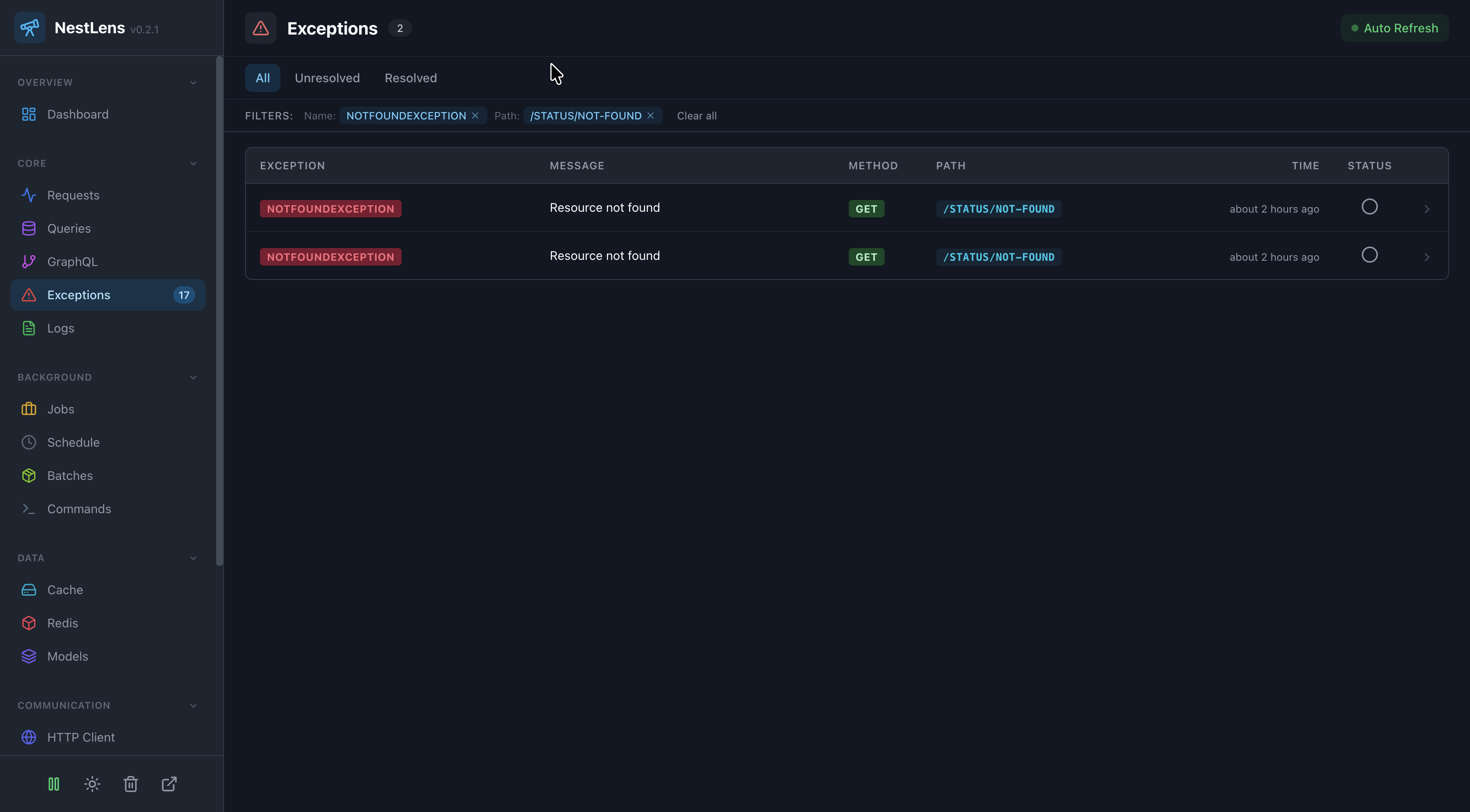
Every filter you have applied appears as a badge below the header:
Method: GET × Status: 500 ×
Click the × to remove one, or Clear all to remove them all at once.
Filtering From a Row
Most values in a table are buttons. Clicking a method, a status code, a path, a queue name or a tag adds it as a filter — this is how filters are added, rather than through a separate filter menu.
Search
The search box above each table matches the entry's payload and its tags. It is applied by the server alongside the other filters.
Per-Page Controls
Some lists carry a control of their own:
- Queries - a Slow Only switch in the header
- Exceptions - All / Unresolved / Resolved tabs
- GraphQL - the error and N+1 badges on a row filter the list to operations that have them
URL-Driven Filters
Filters are reflected in the URL query string:
/nestlens/requests?statuses=500&methods=POST&paths=/api/users&window=1h
Parameter names are plural, and one accepts several comma-separated values:
statuses=500,503. A name the API does not know is ignored rather than
rejected, so a link that filters nothing is usually a misspelled parameter.
Benefits:
- Bookmarkable - Save filtered views
- Shareable - Send links to teammates
- Browser Navigation - Back/forward maintains filters
- Deep Linking - Link directly to filtered results
Filter Combinations
Filters use AND logic by default:
status=500 AND method=POST AND path=/api/*
This means all conditions must match.
Tag Filters
Filtering by several tags in the dashboard matches an entry carrying any of them.
The API offers both, on its own endpoint:
GET /nestlens/__nestlens__/api/tags/entries?tags=error,production&logic=AND
logic accepts AND or OR and defaults to OR.
Clear Filters
Remove all active filters:
- Clear all - the button beside the filter badges, shown once more than one filter is active
- One at a time - the × on a badge
- Navigation - clicking the entry type in the sidebar opens it unfiltered
Filter Persistence
The URL is the only place a filter is kept:
- Survives a refresh - reloading the page keeps every filter
- Survives the back button - browser history moves between filtered views
- Nothing is stored locally - opening the same page in another tab starts from whatever that tab's URL says
Performance Considerations
Filters are applied at the database level for optimal performance:
- Indexed Fields - Common filters use database indexes
- Efficient Queries - Smart query generation
- Pagination - Results paginated automatically
- No Client-Side Filtering - All filtering server-side
Filter Examples
Find Failed Jobs in Specific Queue
Type: Jobs
Queue: email-queue
Status: failed
Slow Database Queries
Type: Queries
Slow: true
Source: typeorm
500 Errors on API Endpoints
Type: Requests
Status: 500
Path: /api/*
Unresolved Exceptions
Type: Exceptions
Resolved: false
Cache Reads
Type: Cache
Operation: get
Next Steps
- Master Keyboard Shortcuts for faster filtering
- Learn about Navigation
- Back to Dashboard Overview